Can you change a QR code destination after printing?
Check the address inside your printed QR before ordering replacements. A managed short link or a URL you control may save the print run.
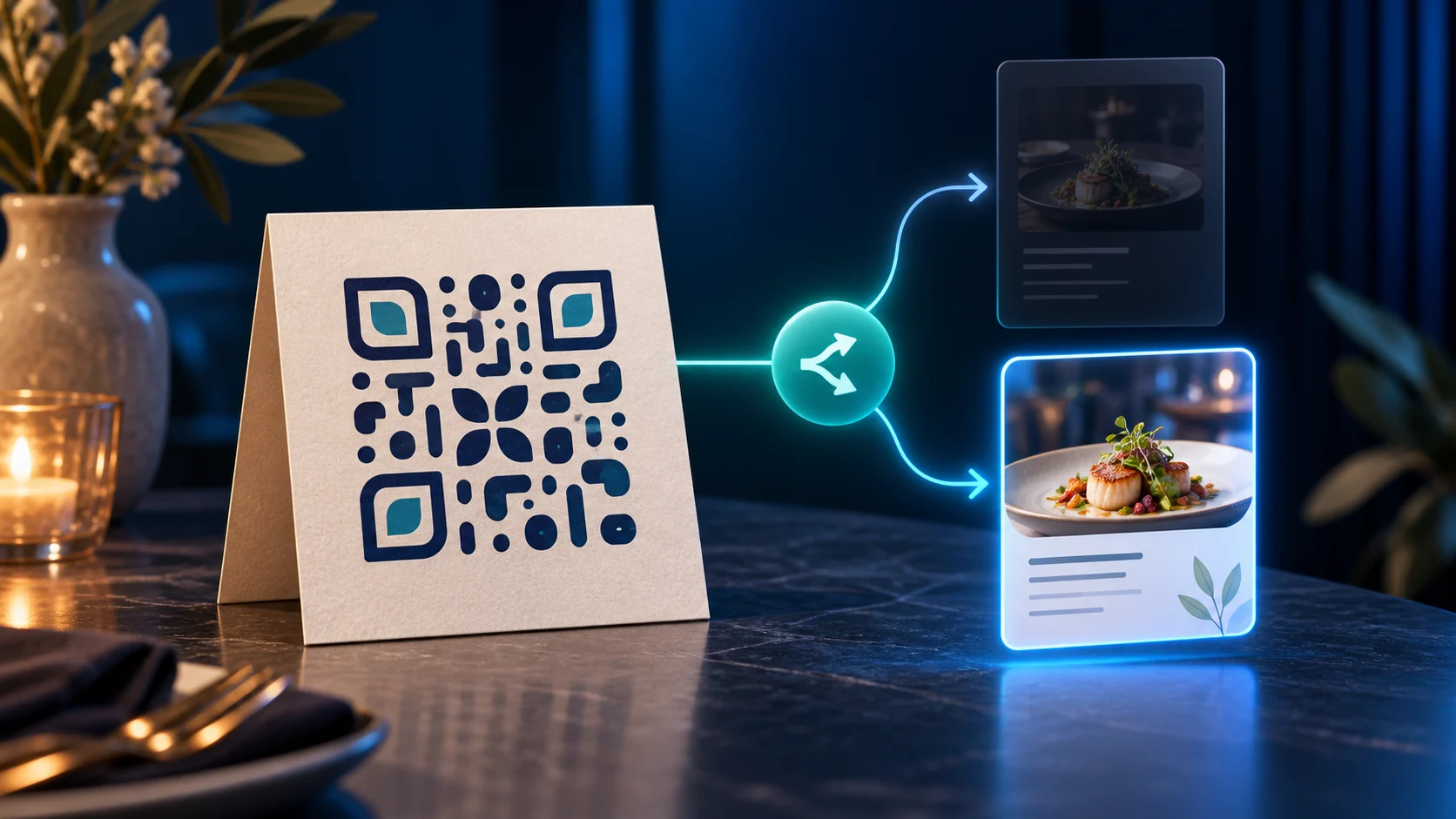
You can change a printed QR code’s destination when its encoded URL points to a redirect or page you control. The printed pattern stays fixed. If it contains an address you cannot manage, changing a separate QR image will not update the printed copies.
The menus are printed. Then the PDF moves, the offer changes, or somebody spots a typo in the landing-page address. Generating another QR code is easy. Getting that new pattern onto every menu is the expensive part.
Start with the actual card on the table. Scan it and inspect the address encoded in the pattern before the browser follows it. Some scanners let you copy the detected URL; others open the browser immediately. Use a scanner that shows the payload if you cannot see the first address.
Do not diagnose the problem from the final address bar alone. A working redirect can take you through a short address so quickly that you only see the destination.
The first address decides what you can change
A QR symbol holds encoded information. DENSO WAVE, the company behind the QR Code, explains the format in its QR Code overview. A printed pattern cannot fetch a revised pattern from your dashboard. What can change is the response from the web address inside it.
| What the printed code contains | Your next move |
|---|---|
| A managed short URL in your account | Edit the existing link’s destination |
| A page or file URL on your own domain | Update that resource, or redirect that exact address |
| A third-party URL you cannot manage | Ask its owner for help, or replace the printed code |
| Plain text or contact details | Those details are in the pattern; a revised image needs new printing |
If the code contains a Directinapp link
Find the existing link in your Directinapp account and compare its short address with the address you just scanned. Open its details, choose Edit, change Destination URL, and save. Keep the original short address in service. Creating a new link produces a different address and does nothing for the old printed pattern.
Destination editing depends on your account entitlement. The current editor shows any remaining destination fixes for the free plan; full editing requires an eligible paid plan. Check the allowance displayed in your account before planning repeated menu or campaign changes.
Write down the change time and the old destination. If the new page is wrong, you have a clear value to restore rather than trying to remember which PDF was used last week.
If the code contains your own website address
Suppose the card encodes example.com/menu. You can replace the content served at that address and leave the URL alone. If the page has moved, whoever manages your website may be able to redirect that exact old address to the new location.
That option is easy to miss when a tool calls the QR “static.” The symbol is static, but a page you control can still change. Access to the original domain and path matters more than the label in the QR generator.
For changing promotions, ask your developer to review redirect caching as well as the destination. A redirect cached as permanent may behave differently from one intended to change. MDN’s HTTP redirection guide explains the distinction.
When replacing the print really is necessary
If the encoded URL belongs to someone else and they will not change it, your account cannot redirect their address. The same applies to a misspelled domain you do not own. A fresh code in your dashboard will not repair those printed dots.
For a small batch, an opaque replacement sticker may be practical. Cover the old pattern completely, leave clear space around the new one, and test the actual sticker on the actual paper before producing the rest. Gloss, folds, tiny sizes, and competing patterns can turn a readable screen preview into an awkward scan.
Keep the message around the code accurate too. A label promising a menu should not quietly start sending customers to an app download or mailing-list form.
Check the physical code after the change
Use the printed copy, not the image you just downloaded. Open a fresh browser session, scan, and confirm the promised resource loads without your account login. Try mobile data as well as the venue’s Wi-Fi if customers are likely to use both.
If an old page still appears, inspect each hop: encoded URL, redirect target, final page. Browser caching, a cached PDF, and a cached redirect are different places to investigate. Reprinting should not be your first diagnostic step.
Record that change alongside your QR scan reports. Traffic before and after the update belongs to different destinations even if it uses the same short link. Scan totals alone do not tell you whether the new offer sold more.
What should you do before the next print run?
Use a stable address you can maintain, give one person responsibility for it, and keep a note of where the QR has been printed. Export the code only after testing that address. For a campaign with several physical placements, plan separate tracked links before printing; the offline QR campaign guide explains how to keep those placements distinguishable.
Can you change the colours later? You can change a future export, but the paper already on the table keeps its existing colours. Can you keep the same code for next month’s menu? Yes, if you maintain control of the URL it encodes and the service behind it remains available.
Found this useful? Tell Google to show you more of it.
Add us as a preferred sourceRelated guides
Put this into practice
Create smart short links that open the right app, with analytics built in. No credit card required.
Start free